

.NET Aspire simplifies local development and brings the architecture closer to the development team. These are the main takeaways from my last article. However, we cannot talk about cloud-native applications if we only focus on local development. The main idea behind cloud-native applications is the new perspective on efficient development and moving to production. The main task of the tools in the cloud-native landscape is to make the whole process much easier, simple, and generally efficient.
Azure Developer CLI (azd)
The Azure Developer CLI (azd) is an open-source tool that accelerates the migration from a local development environment to Azure. azd provides a set of developer-friendly commands that map to the main steps in the DevOps process (code, build, deploy, monitor). The team behind azd has built great new features to make .NET Aspire development and deployment to Azure a friction-free experience.
.NET Aspire projects are designed to run in containerized environments, and azd has been extended to smooth the release of .NET Aspire projects to Azure Container Apps.
azd in Action
After installing azd (winget install microsoft.azd), the next step is to navigate to your .NET Aspire solution folder and execute azd init. This initializes a new application, based either on the Aspire solution or a template.
The azd init command scans the Aspire solution and creates two files:
azure.yamlnext-steps.md
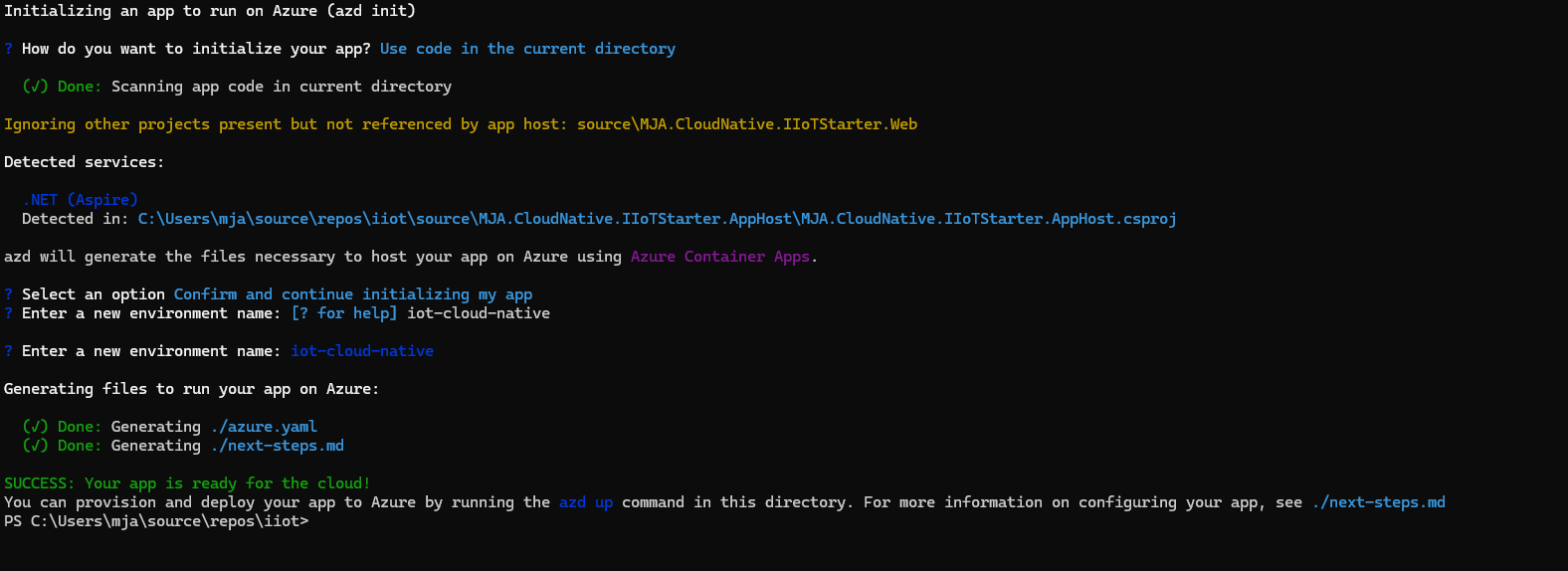
The azure.yaml file contains a service referencing your project’s App Host. The yaml files for the rest of the services in the Aspire application are generated and stored in memory only when needed.
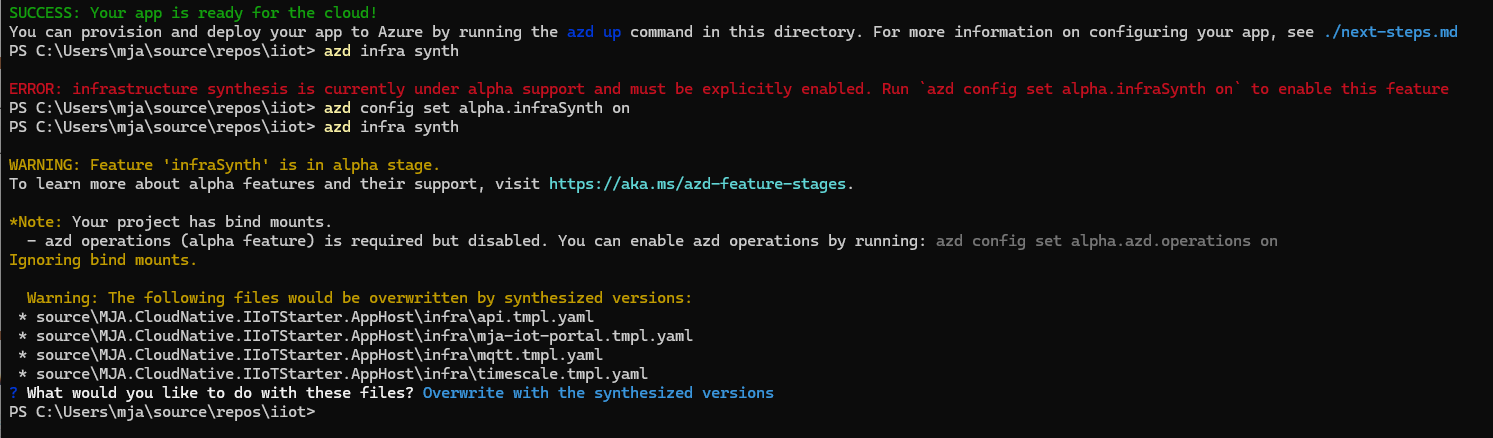
To get an overview of the infrastructure, the command azd infra synth generates all the required yaml files. This command is not enabled by default since it’s in the alpha stage — enable it with: azd config set alpha.infraSynth on
After running the command, azd generates yaml files for all the applications in the Aspire solution.
azd up: One Command to Deploy Everything
Once the azd project has been initialized, the next step is to take the project to Azure. azd up is a single command that runs the whole magic. Here’s a detailed overview of what it does:
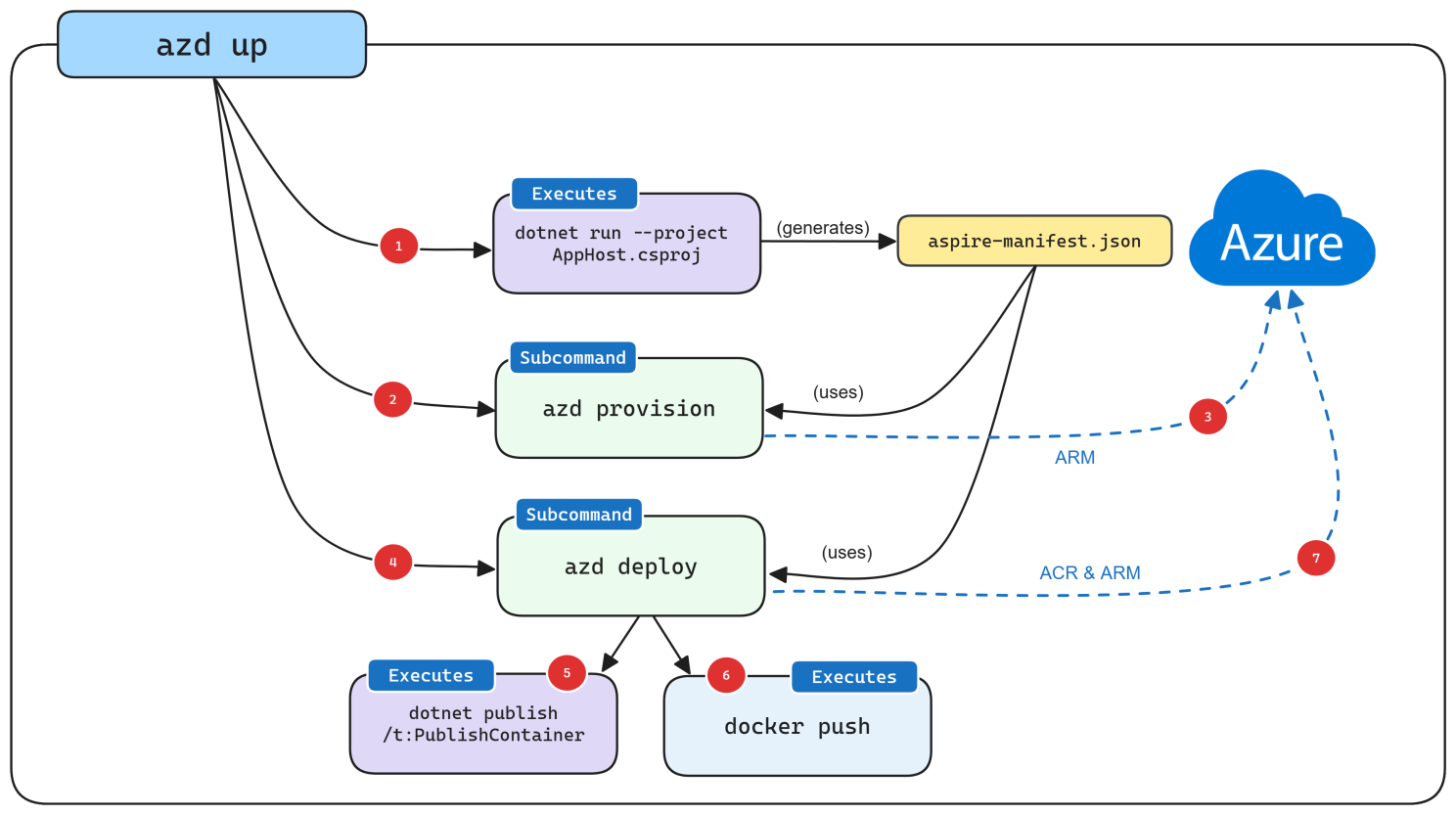
- When azd targets a .NET Aspire project, it starts the AppHost with a special command that produces the Aspire manifest file.
- The sub-command logic interrogates the manifest file to generate Bicep files in memory (by default).
- After generating the Bicep files, a deployment is triggered using Azure’s ARM APIs targeting the subscription and resource group provided.
- Once the underlying Azure resources are configured, the
azd deploysub-command logic is executed using the same Aspire manifest file. - As part of the deployment, azd calls
dotnet publishusing .NET’s built-in container publishing support to generate container images. - Once azd has built the container images, it pushes them to the ACR registry created during the provisioning phase.
- Finally, once the container image is in ACR, azd updates the resource using ARM to start using the new container image.
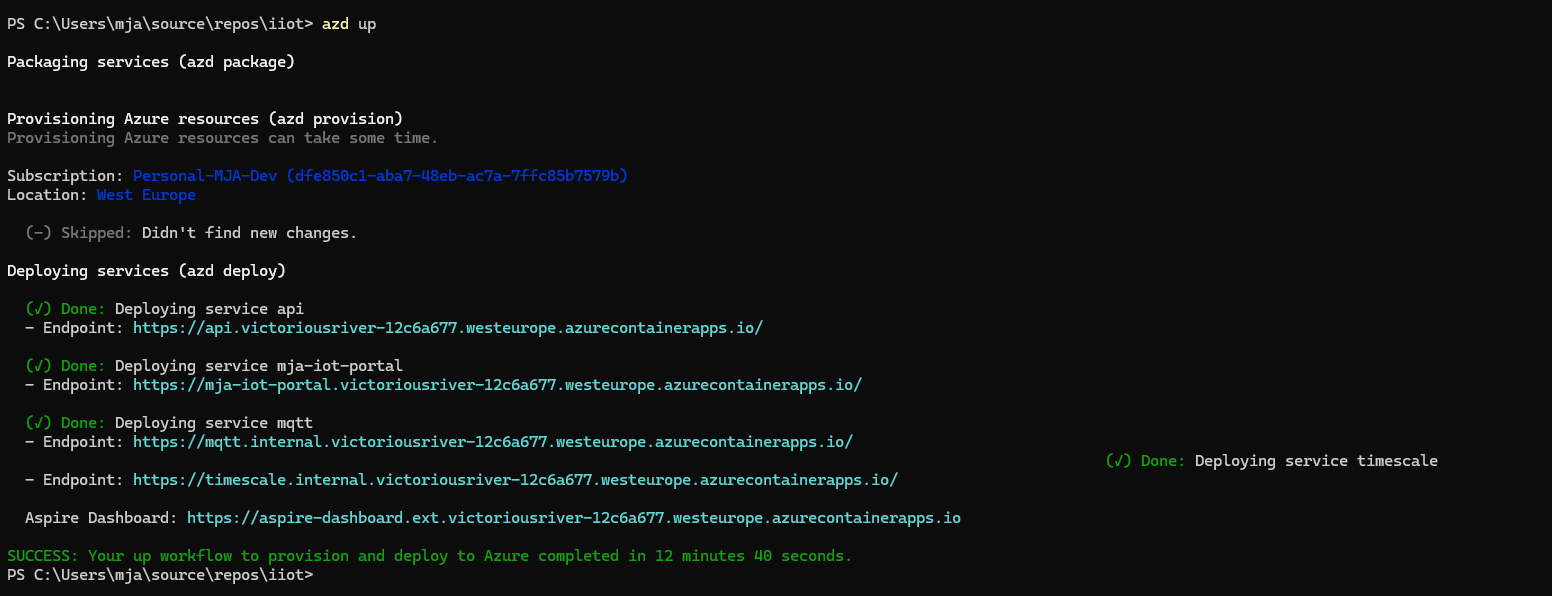
After the deployment, the Aspire Dashboard application is also hosted in Azure Container Apps. It shows all the services defined in the Aspire solution.
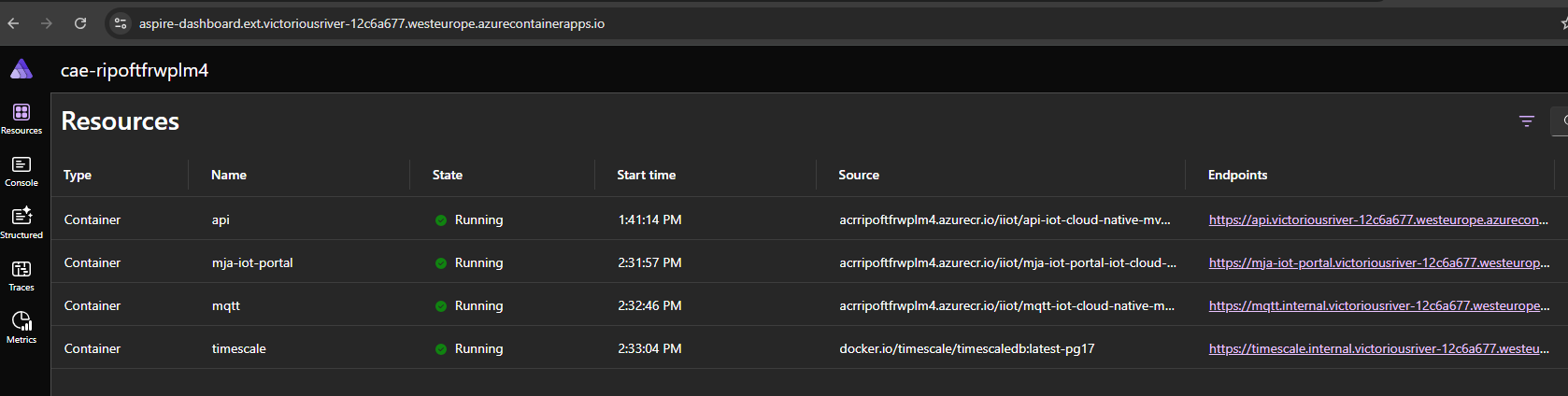
An interesting detail: checking the Azure Resource Group reveals that all the required services to run the Aspire application have been provisioned and configured automatically. This eliminates the necessity for manual configuration management for different environments — previously one of the biggest headaches in enterprise projects.
Takeaways
Pros:
- Aspire applications are very well supported in azd. The experience deploying an Aspire application to Azure Container Apps is smooth and effortless.
- No more connection strings and environment variables to manage manually. The service interconnection is done automatically and securely.
- azd makes feature branch releases straightforward and can be easily integrated into a DevOps pipeline.
- Aspire + azd = the perfect example of cloud-native application development tools.
Cons:
- azd only supports Azure Container Apps natively. It partially supports Azure Kubernetes Service, but you have to run Aspir8 to generate Kubernetes manifests.
- azd requires at least one custom application in the Aspire solution. If there are only Docker file services, the provisioning cannot be instantiated.
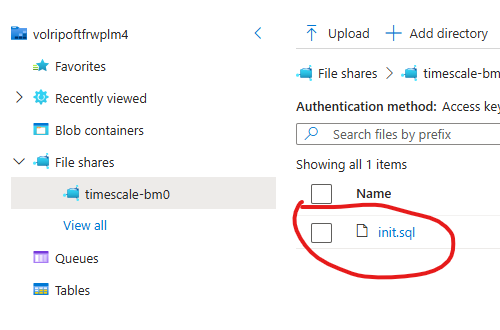
- azd has certain limitations. For instance, deploying a time-series database that requires an initialization script — azd created the Azure File Share and mounted it to the container app, but the initialization script file was not uploaded automatically. A manual upload was required.